 Lvcha VPN

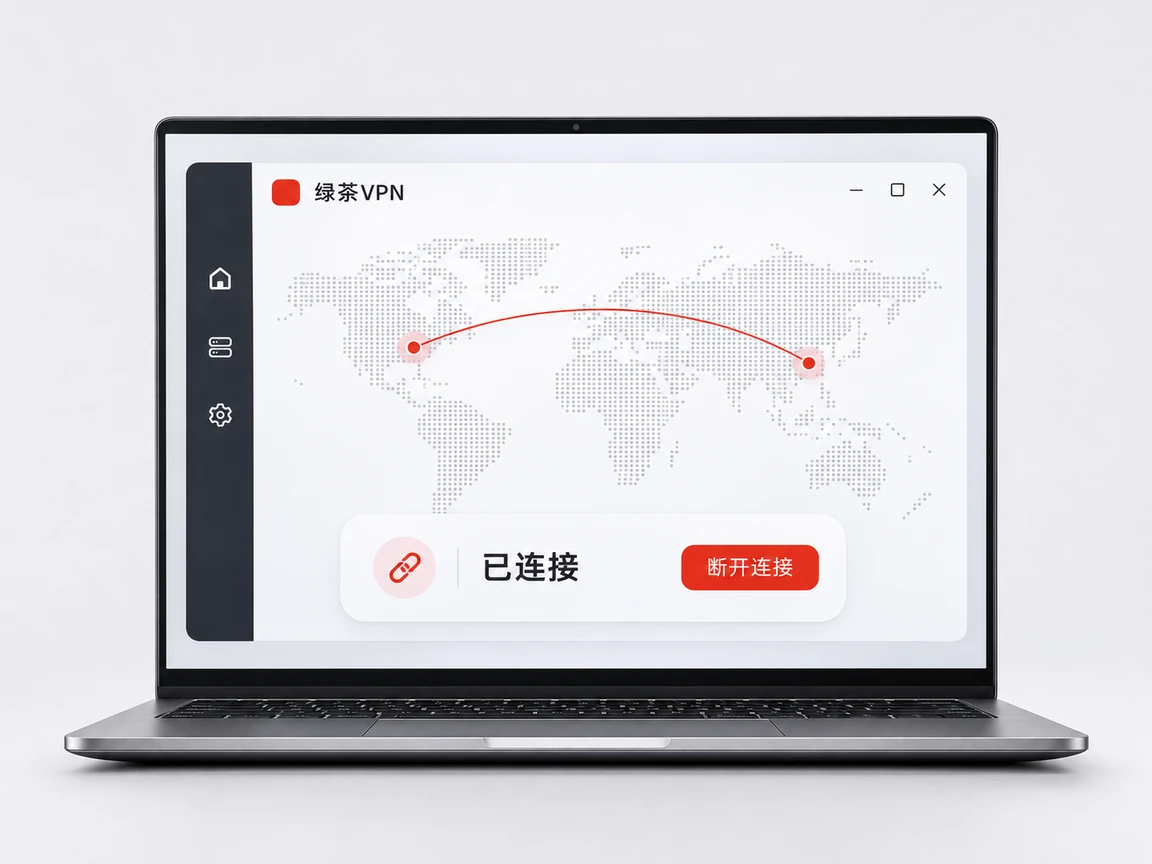
First, check the latency, and then select the candidate nodes.
Open the node list on the client side, and run a test in the connectivity testing version. The delay reflects the time required for one round trip between the device and the node. This can be used for preliminary filtering purposes. Note down the nodes that passed the test. Then, try each of them separately.
Compare it with what you actually want to do.
If the device is mainly used for browsing web pages, open the same page under the same Wi-Fi network. If the device is mainly used for watching videos, ensure that the resolution and playback duration remain consistent. Observe how long it takes for the video to start playing, and whether there are any buffering moments during playback. When downloading large files, it’s useful to compare the speed during the continuous transfer process.
When is it worth doing again?
After switching from Wi-Fi to mobile data, the path to the same node may change. In this case, it’s possible to test again. If the client offers an option for automatic matching, you can also let it select a candidate route first, and then use the previous test to verify the results.

 Continue reading · Version updatesVersion 2.6.4 improves uploads and device compatibility