 Lvcha VPN

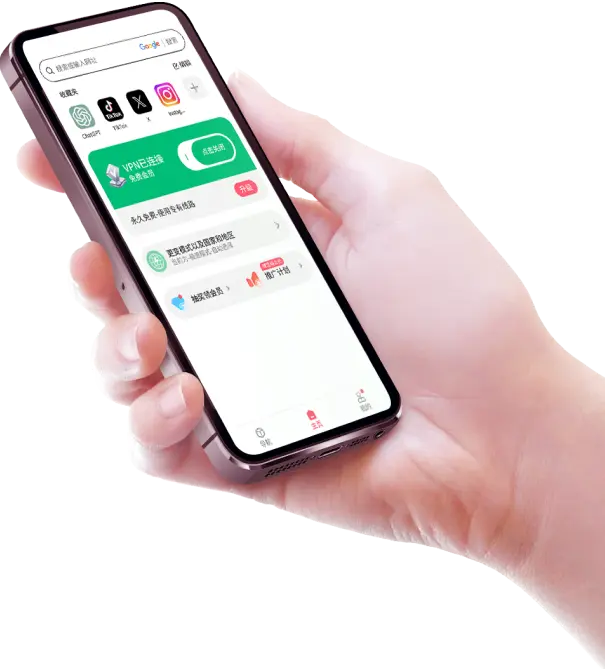
Pay attention to the first authorization window.
When the connection is initiated for the first time, Android may ask if you want the app to establish a VPN connection. Check the application name and the requested information in the confirmation window, and then decide whether to allow it or not. If you chose to cancel in the previous instance, you can return to the client and try again, observing whether the system prompts again.
View the VPN configuration in use.
Search for "VPN" in the system settings to check which application is currently enabled. If another application is set to always be active, the new connection may not be able to take over. It’s important to understand the purpose of this configuration; the settings on your working device can be verified with the management personnel.
It’s important to distinguish between connection failures and issues where the web page cannot be opened.
If the client indicates that the connection is successful, but the web page still takes too long to load, you can try disconnecting the VPN and opening the same web page using a different network. If this approach also fails, check for issues with Wi-Fi login or mobile data. If the issue only occurs after connecting, record the system version, node name, and any error messages, which will help the support team in further troubleshooting.

 Continue reading · Version updatesWhat changed in version 2.6.6